



How to Restore Missing Account Data in TweetAttacksPro
In very rare cases, account groups or account information may appear to be missing after restarting TweetAttacksPro. This is an occasional issue and does not happen frequently. In most cases, your data can be restored using the backup files available in the software.
You can restore your account data using one of the following two methods.
Method 1: Restore from the Software
This is the recommended method.
Open TweetAttacksPro.
Go to Settings → Data Management.
Find the date when your account data and groups were still correct after your previous software session.
Click Backup for that date.
Then click Restore.
Restart TweetAttacksPro and check your account information.
Screenshot:
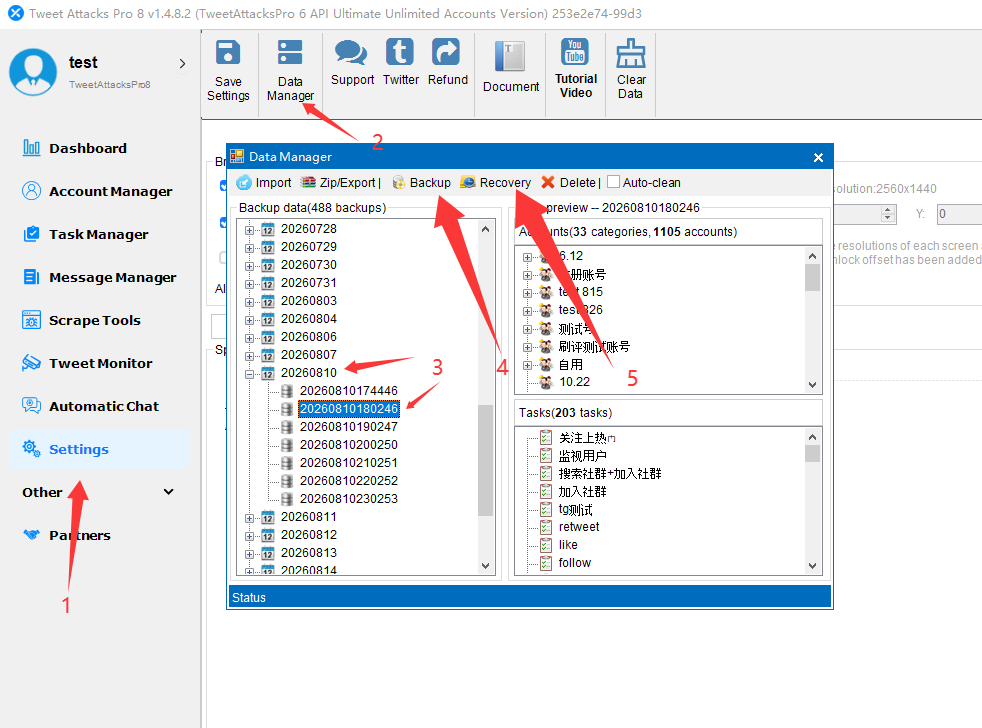
Tip: Choose the most recent backup from when your account groups and information were confirmed to be correct.
Method 2: Manually Restore from the BackupData Folder
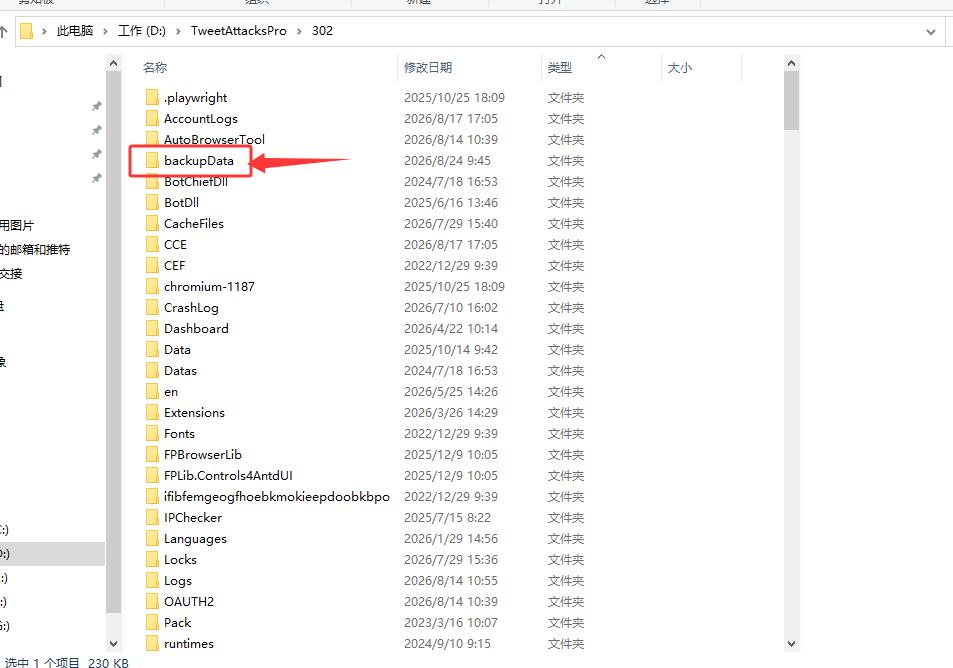
If Method 1 does not work, you can manually restore the account data from the local backup folder.
Close TweetAttacksPro completely.
Open the TweetAttacksPro → BackupData folder.
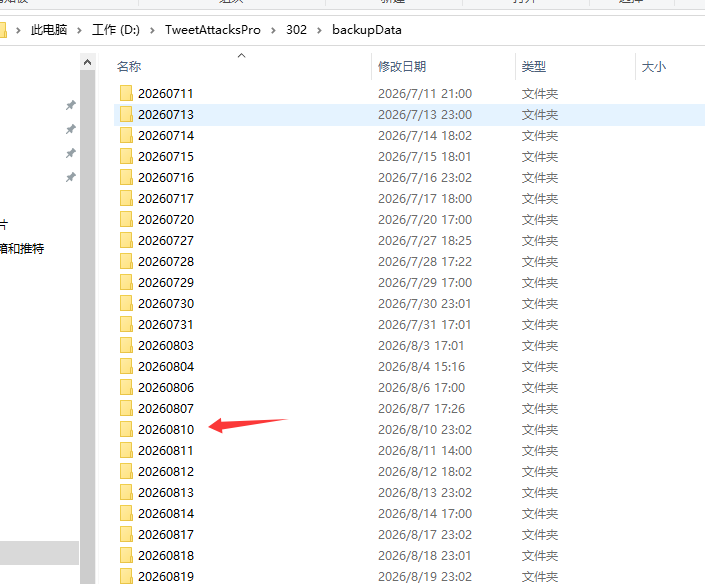
Find the folder dated when your account groups and information were still correct.
Extract/open that backup folder.
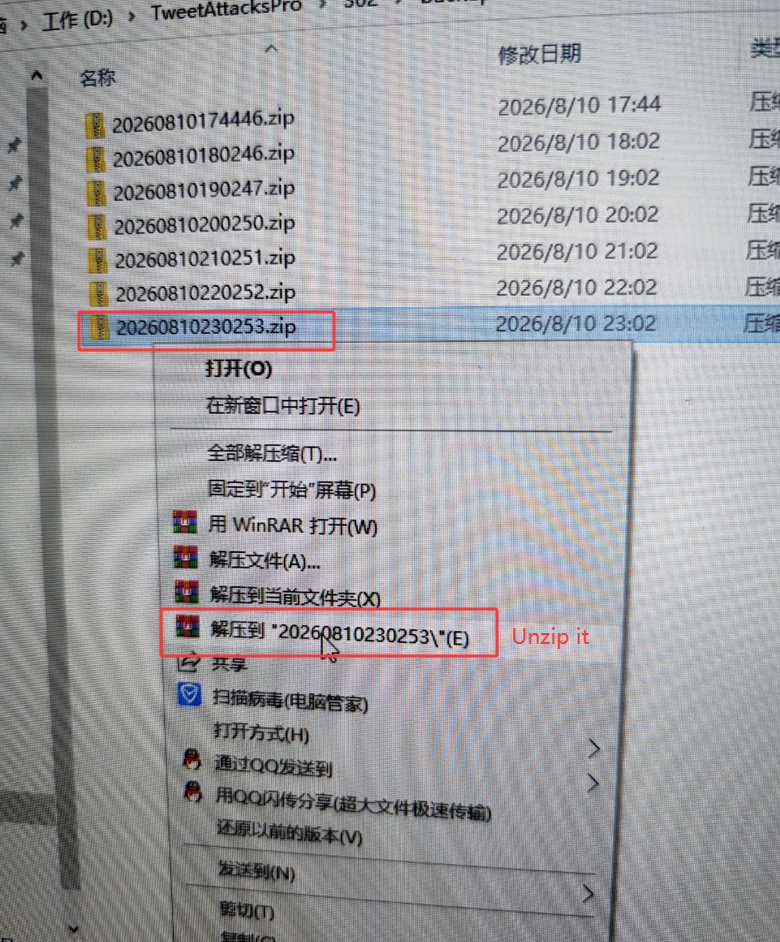
Copy the Save folder inside it.
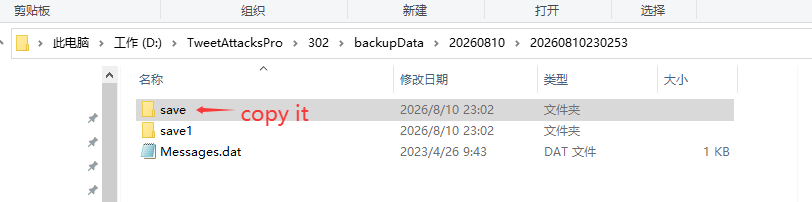
Paste the Save folder into the TweetAttacksPro root directory and replace the existing folder if prompted.
Restart TweetAttacksPro and check your account data.
Important
Always choose a backup from the last known date when your account data was correct. We recommend trying Method 1 first before using the manual restoration method.