



How to Add a Proxy to a Twitter (X) Account in ViewBot
If you are using ViewBot to manage Twitter (X) accounts and want to assign a proxy to an account, the setup is straightforward.
This quick guide explains which proxy to choose, where to buy one, and how to add it to your X account in ViewBot.
1. What Type of Proxy Should I Use?
For ViewBot, we recommend using:
HTTP / HTTPS
IPv4
Residential
Static proxies
A static residential IPv4 proxy is generally a good choice for users who want a consistent network environment for their X account.
Before purchasing, confirm with your proxy provider that the proxy supports HTTP/HTTPS connections and IPv4.
2. Where Can I Buy Proxies?
You can search Google for reputable proxy providers and compare their available plans.
Before purchasing, we recommend contacting the proxy provider and explaining your requirements.
Ask them about:
Proxy type
IPv4 availability
HTTP/HTTPS support
Static or rotating IP
Number of IPs included
Bandwidth or traffic limits
Price
Don't simply choose the cheapest package. A slightly more expensive plan may offer better stability and value for your specific workflow.
If you need help choosing a suitable proxy package, you can also contact us:
WhatsApp: +8619302312554
Telegram: @aiostream
Email: [email protected]
WeChat: +19923834711
3. How to Bind a Proxy to an X Account in ViewBot
After purchasing your proxy, open ViewBot and locate the X account you want to configure.
Then open the account's Proxy / Proxy Settings section.
Enter the proxy information provided by your proxy supplier:
Proxy Host / IP: Your proxy IP or hostname
Port: Your proxy port
Username: Your proxy username, if required
Password: Your proxy password, if required
Select the appropriate HTTP/HTTPS proxy type and save the configuration.
Configuration Example
Proxy Type: HTTP / HTTPS IP / Host: xxx.xxx.xxx.xxx Port: 12345 Username: your_username Password: your_passwordip:port:username:password
One line one proxy. Put them into a txt before you import them into ViewBot. Sample:
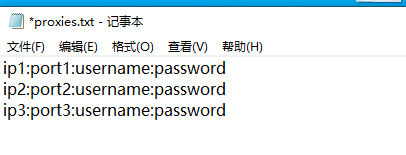
Important: Replace the example information above with the actual proxy details provided by your proxy supplier.
4. Where Can I Find the Proxy Settings?
Please refer to the screenshot below for the exact location and configuration steps in ViewBot.
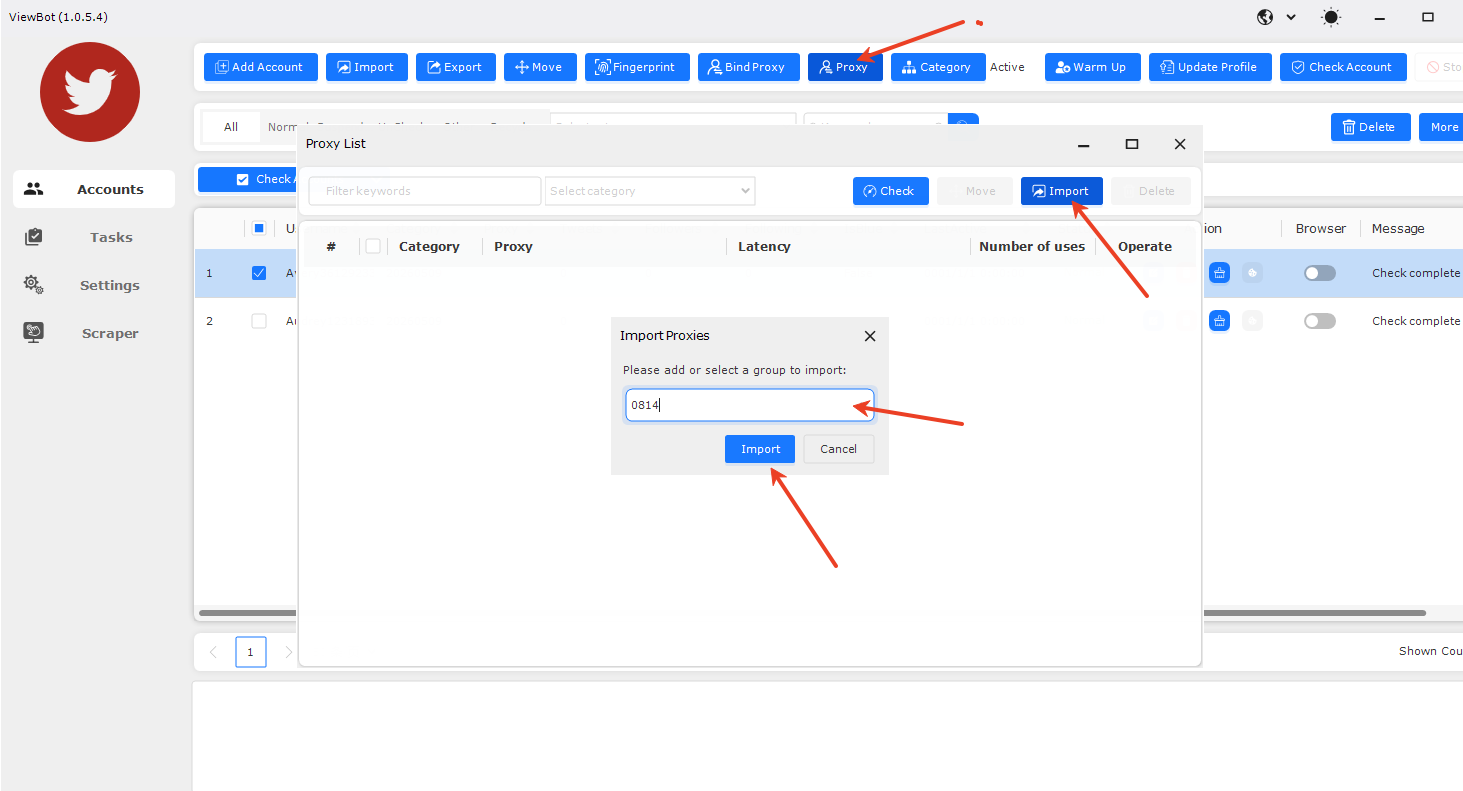
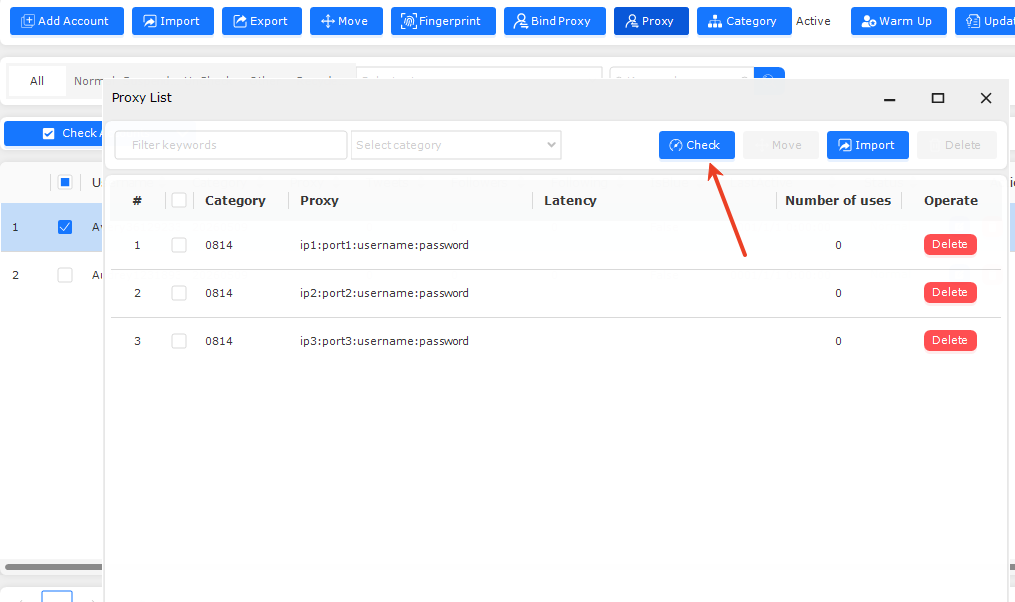
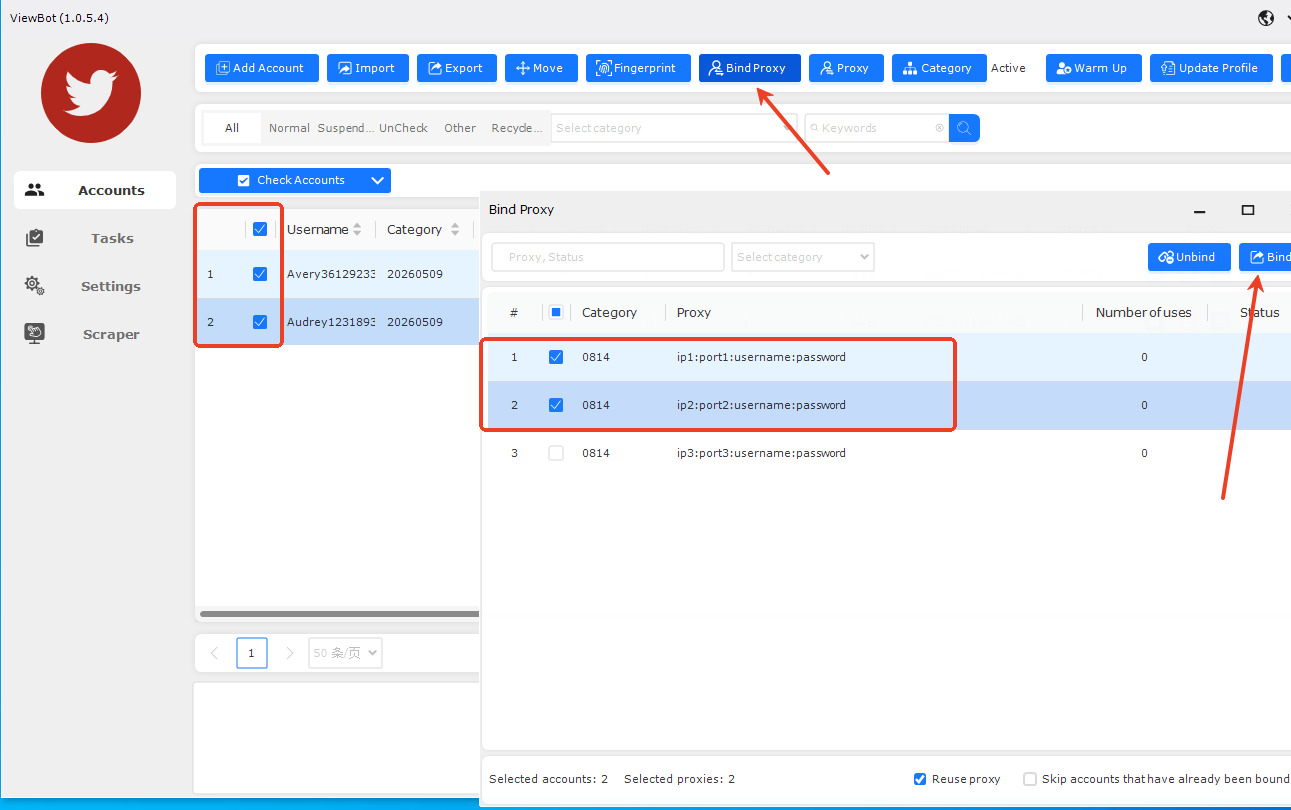
Follow the fields shown in the screenshot, enter your proxy information, and save the settings.
Quick Checklist
Before starting ViewBot, make sure you have:
HTTP/HTTPS proxy
IPv4 address
Residential IP
Static IP
Proxy port
Username and password, if required
That's it.
Once the proxy has been configured, you can continue using the X account in ViewBot according to your normal workflow.
For the best results, choose a reliable proxy provider and maintain a consistent, legitimate account-management environment. Proxy configuration does not bypass X's rules or guarantee that an account will not be restricted.
Need Help?
If you have questions about ViewBot, proxy configuration, or choosing a suitable proxy plan, contact us directly:
WhatsApp: +8619302312554
Telegram: @aiostream
Email: [email protected]
WeChat: +19923834711