



How to Fix Outlook/Hotmail Email Connection Issues in TweetAttacksPro
If TAP cannot receive verification emails from an Outlook mailbox when using features such as Verify Accounts, Change Password, or Unlock Accounts, the issue is usually related to the Outlook OAuth2 authentication information.
Follow the steps below to check and fix the problem.
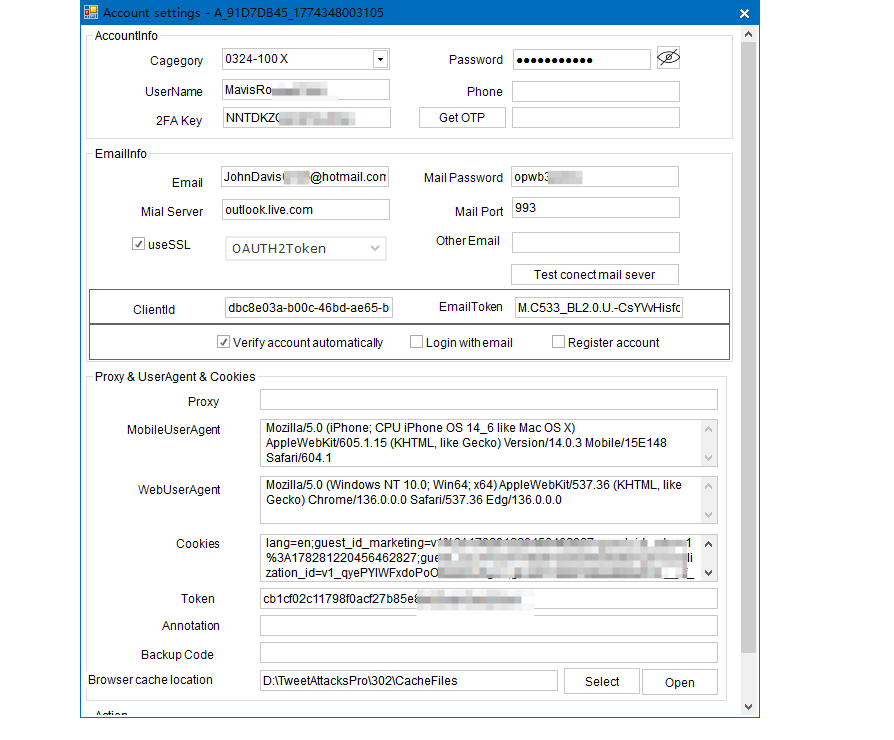
1. Check Your Outlook Mail Settings
First, make sure the following information entered in TAP is correct:
Outlook Email
Email Password
Client ID
Email Token
Mail Server, Mail Port
Make sure there are no extra spaces or incorrect characters.
2. Test the Mail Server Connection
After confirming the information, click Test Connect Mail Server in TAP.
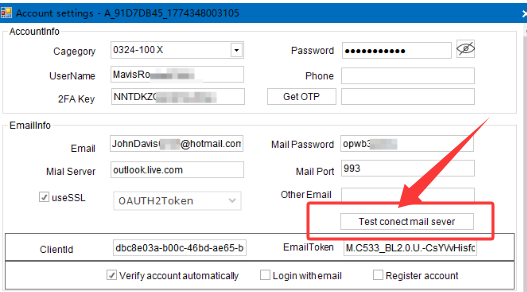
You will normally see one of the following results:
Success
If the result shows Success, TAP has successfully connected to the Outlook mail server.
You can then retry the related function, such as Verify Accounts, Change Password, or Unlock Accounts.
Authentication failed
If the result shows Authentication failed, TAP cannot authenticate with the Outlook mail server.
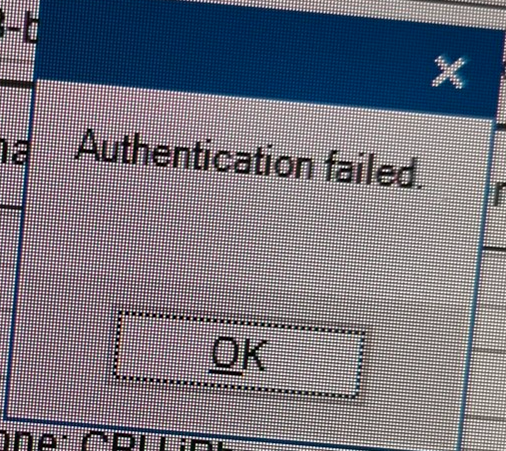
First, double-check the email address, password, Client ID, and Email Token.
If all other information is correct, the Email Token may have expired or been revoked.
3. Check Whether the Outlook OAuth Token Is Still Valid
OAuth access tokens are short-lived. Microsoft uses refresh tokens to obtain new access tokens when the current access token expires. Refresh tokens can also expire or be revoked.
TAP uses the Microsoft authentication token provided for the Outlook account to connect to the mailbox and retrieve verification emails.
To verify whether the token is the problem:
Re-authenticate the Outlook account through the same Microsoft OAuth authorization process used to obtain the token.
Sign in with the Outlook account.
Approve the requested permissions.
Obtain a new OAuth token from the authorization flow.
If the authorization process succeeds but the old token fails in TAP, the old token should be considered invalid or expired.
Important: Outlook does not normally provide a page where users can simply copy an existing OAuth token from their mailbox settings. A new token should be obtained through the Microsoft OAuth authorization flow.
4. Update the Token in TAP
If the previous token is invalid:
Complete the Microsoft OAuth authorization process again.
Obtain the new token.
Copy the new token.
Open TAP and replace the old Email Token with the new one.
Keep the existing Email, Password, and Client ID unchanged unless they have also changed.
Click Test Connect Mail Server again.
If the result shows Success, the Outlook mailbox is connected correctly.
You can now retry Verify Accounts, Change Password, Unlock Accounts, or other TAP functions that require access to the Outlook mailbox.
Security Note
OAuth tokens are authentication credentials. Do not share your Email Token, Client ID, password, or other authentication information publicly. Store and handle them securely.
Notice:
If you bought the outlook accounts from the provider, you also can require the provider to give you new refresh outlook token.